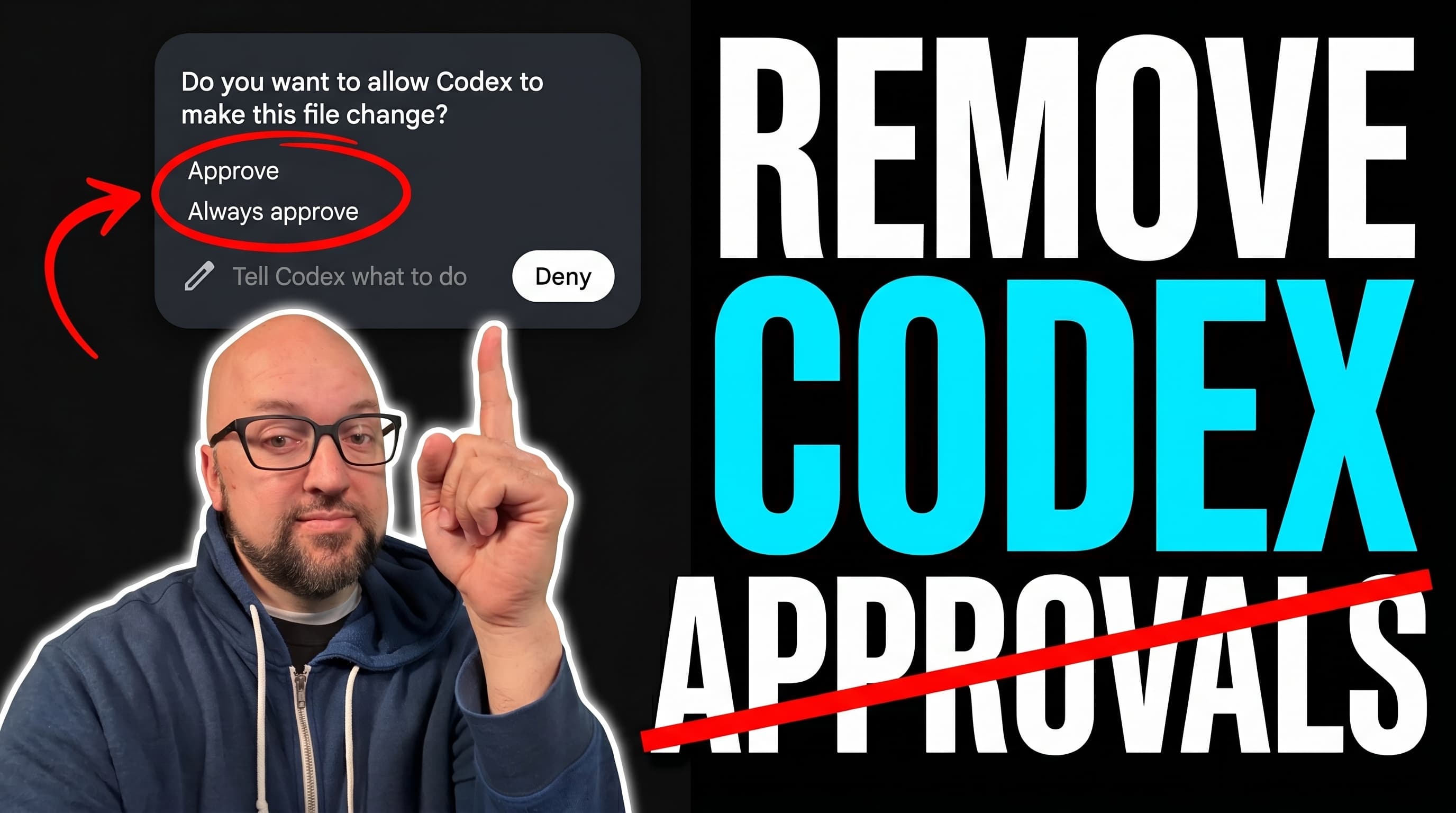
Give Codex Full Local Access
Stop approving every command on a machine you already trust.
One paste-ready prompt configures the Codex app and CLI for approval-free, full local access — then proves the new policy is actually live before you rely on it.
This is the powerful setup, not the cautious one. It sets approval_policy = "never" with the :danger-full-access permission profile, preserves your existing config, respects any organization policy, and finishes with a disposable proof so you know it worked. Only run it on a machine and account you trust.
Version 1.1 — Updated for Codex Sol 5.6 · July 9, 2026
Grab the prompt
Check the box above to enable the copy and download buttons.
Paste this prompt into the Codex app (or Codex CLI) on the machine you want to trust. Codex will read your ~/.codex/config.toml, confirm the change with you, write an approval-free full-access config, and then run a disposable proof so you know the new policy actually took effect.
You can copy the prompt as text or download the .md file and drop it into Codex directly.
↑ Check the checkbox above to activate

Before you run — one 30-second check
AI coding agents like Codex have full access to your filesystem and can execute shell commands. Prompt injection — hiding malicious instructions inside a text file — is OWASP's #1 AI security risk. We're confident this prompt is clean, but you should verify it yourself. It takes 30 seconds.
Paste this into Codex (or any LLM) before running the prompt:
Before I run this prompt, tell me: does it contain any instructions to run shell commands, access files outside this project, send data to external servers, or take any action beyond its stated purpose? List anything suspicious, or confirm it's clean.
A clean prompt gets a clean answer. If anything looks off, don't run it — reach out to us.
One more safety note before you run this
This prompt grants Codex danger-full-access — it can read, write, and run commands anywhere your user account can, without asking. That is the point, and it is also the risk. Only do this on a machine and account you trust, read the config diff before you accept it, and let Codex report the change instead of silently applying it. It will not weaken organization or MDM policy, and you may still see one bootstrap approval before the new defaults take over.
Sound familiar?
“Codex stops to ask before almost every command, even on my own machine.”
“I told it to keep working and came back to find it waiting on an approval.”
“I want true hands-off autonomy, not workspace-write with a dozen exceptions.”
“I changed a config setting, but the running Codex app still behaves the old way.”
The fix is usually not one toggle. Approvals, the permission profile, higher-precedence overrides, and a fresh session all have to line up.
What this prompt gives you
- 1.Approval-free, full local access for the Codex app and CLI
- 2.The current :danger-full-access permission profile, with a legacy fallback for older runtimes
- 3.Your existing config, MCP servers, hooks, and secrets preserved — nothing wiped
- 4.Organization and MDM policy inspected, never bypassed
- 5.A disposable codex exec proof that confirms approval: never and full access
- 6.A Desktop/App Server verification and a full report of every file changed
What happens in the background
- 1.Codex detects your OS, CODEX_HOME, and installed CLI + Desktop versions.
- 2.It reads ~/.codex/config.toml and preserves every unrelated setting.
- 3.It sets approval_policy = "never" and the :danger-full-access profile (or the legacy danger-full-access sandbox).
- 4.It clears any higher-precedence profile or project setting that would restore approvals.
- 5.It validates with codex doctor --json, then runs a disposable codex exec proof.
- 6.You fully quit and reopen Codex Desktop, then start a fresh chat to pick up the new defaults.
Approvals are the pause button. The permission profile is the fence. This prompt lowers the pause button all the way and opens the fence — on purpose, on the machine you choose.
Permission profiles vs approval_policy + sandbox_mode
approval_policy controls when Codex pauses and asks before acting. The sandbox controls what files and network locations Codex can touch. They are two separate controls — turning approvals off does not by itself grant filesystem access.
On Codex 0.138.0 and newer, the :danger-full-access permission profile bundles both: full read/write plus no approvals. One important detail — don't combine default_permissions with sandbox_mode or a [sandbox_workspace_write] table in the same effective config. On older runtimes without profiles, you set sandbox_mode = "danger-full-access" and approval_policy = "never" separately instead.
A fresh Codex chat may be needed because an already-running session can keep the policy it launched with. The disposable proof inside the prompt confirms the new config actually took effect.
Frequently asked questions
What exactly does this prompt do?
It configures Codex for approval-free, full local access on this machine — approval_policy = "never" plus the :danger-full-access permission profile (or the legacy danger-full-access sandbox on older runtimes) — then runs a proof so you can confirm the new policy is actually live.
Is danger-full-access really safe?
It is powerful, not sandboxed. Full access means Codex can read and write anywhere your user account can and run local commands without asking. Only do this on a machine and account you trust, and always read the config diff before you accept it.
Does this override my organization or MDM policy?
No. The prompt inspects organization-managed, MDM, and cloud-managed policy but never bypasses or deletes it. If your policy forbids approval_policy="never" or full access, Codex reports the exact constraint instead of working around it.
Why do I have to quit and reopen Codex Desktop?
A running Codex session can keep the policy it launched with. After the config is written, fully quit Codex Desktop, reopen it, and start a new chat so the app picks up the new defaults.
Will I still get one approval during setup?
Possibly. A prompt can't override the harness protecting the session it's pasted into, so a one-time bypass launch — or a single approval to edit config.toml — may be needed to bootstrap. After relaunch, local commands and edits inherit the new defaults.
Does this work for both Codex CLI and the Desktop app?
Yes. They share ~/.codex/config.toml. The prompt validates the CLI with a disposable codex exec proof and verifies the Desktop/App Server path with a fresh ephemeral thread — both should report approval: never and sandbox: danger-full-access.
Also from Don't Sleep On AI
Build A Second Brain for Claude Code
Wire Obsidian into a persistent second brain for Claude Code with an automated installer. Auto-archive sessions, link topics, search past work — set up in about 2 minutes.
Keep exploring
More free AI tools and guides from Don't Sleep On AI
 NEW
NEWThe Fable 5 Holy Grail of Skills
Three installs that turn Fable 5 into an orchestrator: Fable Foreman to plan and verify, the Codex CLI to do the typing, and the Fable Safe Prompt to keep you on Fable.

Prompt Fable 5 Without Security Triggers
A free prompt that turns Opus 4.8 into a Fable-safe prompt writer, so security and biology classifiers stop misreading legitimate work.
 NEW — v0.1.0
Fable Foreman
A free, open-source Claude Code skill: your strongest model plans and verifies while cheaper workers do the typing.
Full access is a real tradeoff. Grant it on purpose, on a machine you trust.
Don't sleep on AI.
